Different languages have different delimiters and separators, which can sometimes pose a challenge, when trying to meet the needs of multiple audiences.
If you work on a French-language, Windows workstation, it is possible you may encounter an issue where your CSV response files do not open up correctly, with data in rows rather than in columns.
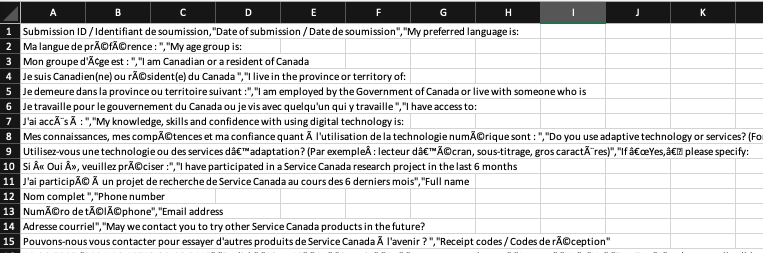
This makes the form response data difficult to parse and use. This happens because some machines will default to using semicolons “;” as delimiters in CSV (comma-separated values) files in French. However, GC Forms uses commas “,” as they are more commonly used.
To ensure questions show up correctly in columns rather than rows when opening responses that were downloaded in CSV format, you will need to adjust regional settings for the operating system language and number options in French.
To mitigate this issue, if encountered :
- Open Microsoft Excel
- Use the “Import data” feature to access response data.
- Select comma “,” as a delimiter instead of semicolon “;”.
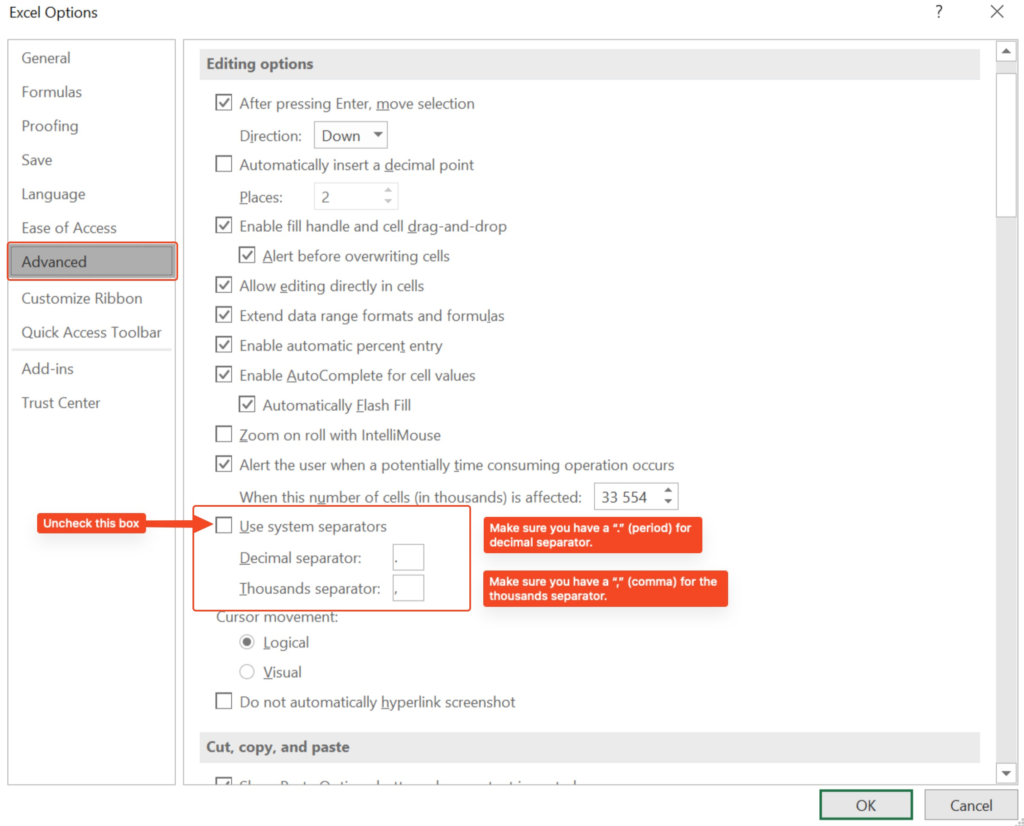
- Go to Excel options > “Advanced”.
- Uncheck the option “Use system separators”.
- Make sure you have a period “.” under the decimal separator.
- Make sure you have a comma “,” under the thousands separator.
- In the Start Menu on your computer, go to the Control Panel.
- In the “Clock and Region” settings, select “Change date, time, or number formats”.
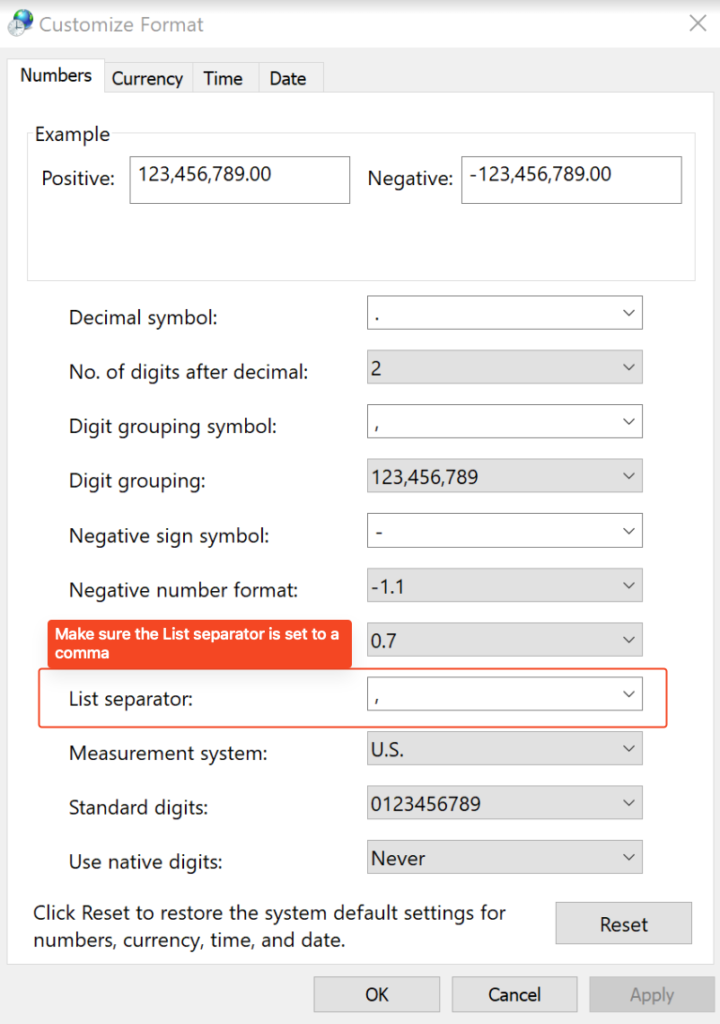
- In the “Formats” tab, go to “Additional Settings…”.
- In the “Numbers” tab, make sure the “List separator” is set to a comma “,”.
- Restart your computer to ensure the changes made apply in Excel and in the Control Panel.
- Open the downloaded CSV response file.